


Experience Sharing: How to translate a screenshot on PC
Computers have long been deeply integrated into work and study, becoming indispensable assistants that we can’t live without. 💥Especially the screenshot function—we use it almost every day. However, when a screenshot contains foreign text, reading it becomes a challenge. 🤔So, how to translate a screenshot on PC for seamless cross-language information exchange? This article has the answers—don’t miss out!


Experience Sharing: How to translate a screenshot on PC
In daily work and study, we often come into contact with a wide array of materials, including content that goes beyond our current understanding — especially foreign text that can’t be directly copied. Thankfully, screenshot translation provides a practical way to handle this situation. So how to translate a screenshot on PC❔ Keep reading to find out~
🌈 Use Cases for Translating Screenshots on PC
◽ Reading Foreign Documents
| Foreign PDFs, scans, or image documents often can’t have their text directly copied. Screenshot translation quickly captures the gist, eliminating tedious manual typing. |
◽ Using Software Without a Chinese Interface
| Some software lacks a Chinese interface. Screenshot translation helps understand key options, features, and prompts, lowering the language barrier. |
◽ Supporting Language Learning
| When encountering unfamiliar words in foreign materials, screenshot translation is faster than manual dictionary lookup, showing full sentences or paragraphs for better contextual understanding. |
◽ Browsing Overseas Shopping Sites
| Product details, specifications, and reviews on international shopping sites are often in foreign languages. Screenshot translation helps understand product information for better purchasing decisions. |
◽ Checking Technical Error Messages
| Foreign error messages in programming or software sometimes can’t be selected or copied. Screenshot translation quickly captures error descriptions for troubleshooting or searching solutions. |
🔎 Why Screenshot Translation May Fail & Suggestions
| Factor | Specific Issue | Impact Level | Notes |
| Image Quality | Blurry or low-resolution images cause errors | ★★★★★ | Clear screenshots work better |
| Font Style | Artistic or handwritten fonts are hard to recognize | ★★★★☆ | Printed fonts have higher recognition rates |
| Text Layout | Tilted or overlapping text may be missed | ★★★★☆ | Horizontal, neat layouts work better |
| Background Interference | Watermarks or patterns cause interference | ★★★★☆ | Simple backgrounds aid recognition |
| Language Type | Less common languages or mixed text have limitations | ★★★☆☆ | Common languages work better |
| Technical Terms | Specialized vocabulary may be inaccurate | ★★★☆☆ | Professional content needs manual review |
📢 Tested Screenshot Translation Methods + Steps
🔶Automatic Recognition and Translation After Screenshot
◾ TranslateAI
A professional, intelligent PC translation software integrating PDF, Word, TXT, text, image, video, and other translation modes. It supports translation between 100+ languages, easily handling document processing, academic research, and business tasks.
📝Steps:
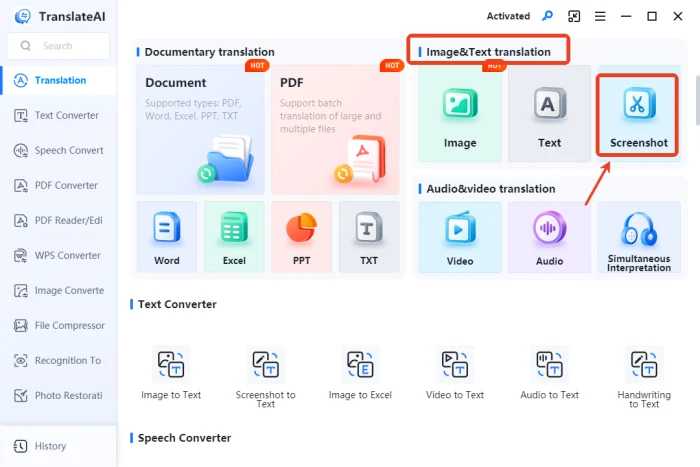
1. Open the software and select【Screenshot】in the “Image&Text translation” module.
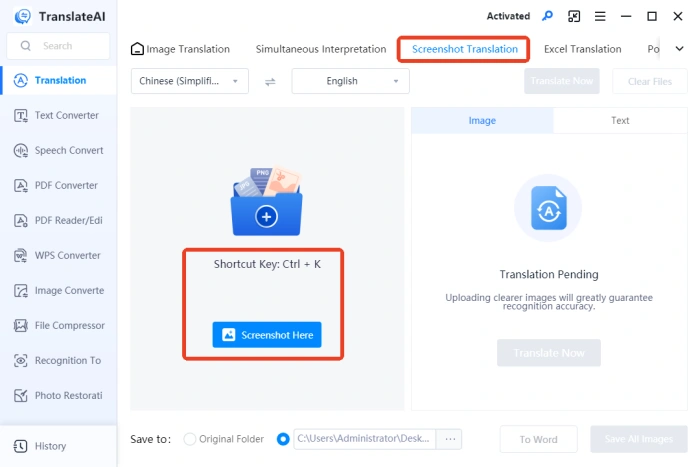
2. Click “Screenshot Here” or use the shortcut “Ctrl+K” to select the screenshot area.
3. The captured content appears on the left. Select source and target languages, then click “Translate Now.”
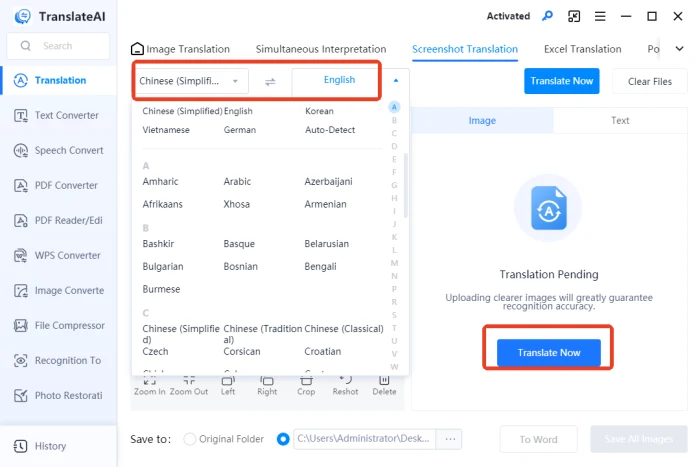
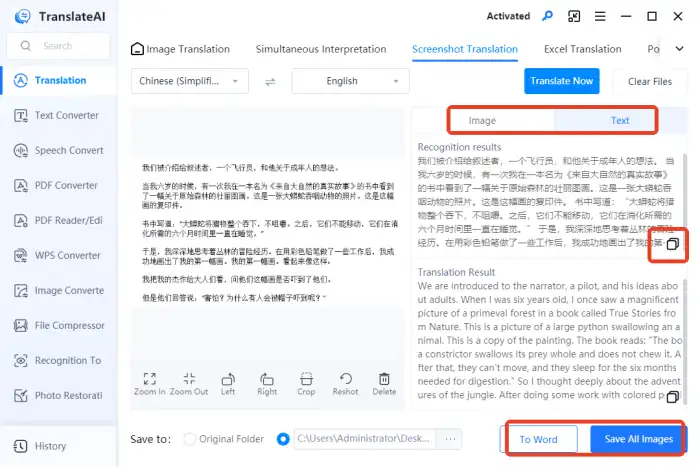
4. The translation appears on the right. Besides copying, you can also export it as an image or Word file.
🔶Save Screenshot First, Then Translate the Image
◾ Image Translator
An online image translation tool by WorkinTool. Simply search and open it in your browser—clean interface, multi-language support, fast and accurate translation for everyday light use.
📝Steps:
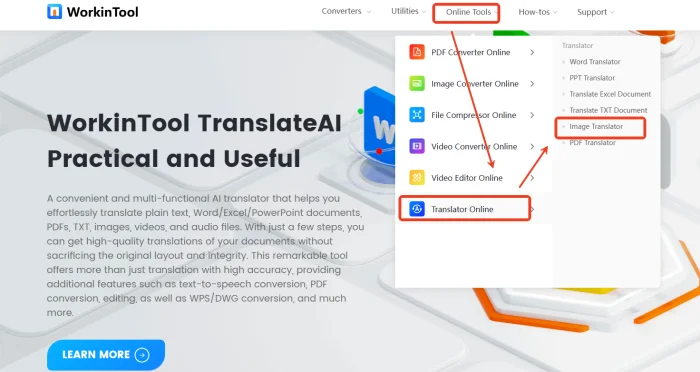
1. In “Online Tools,” select “Image Translator” under “Translator Online.”
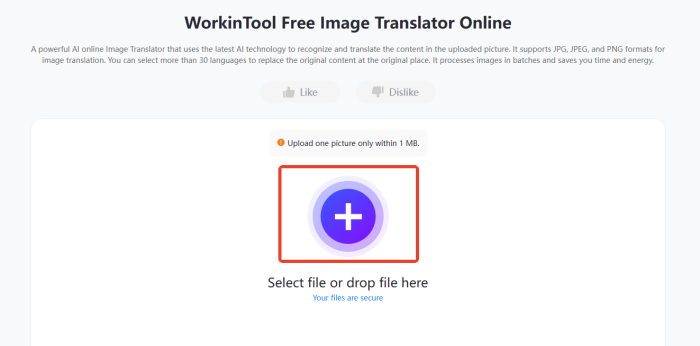
2. Input your target images. (It supports up to one image within 1M to process together. JPG/JPEG/PNG are supported.)
3. Adjust the source and target languages. Then, click “Translate.”
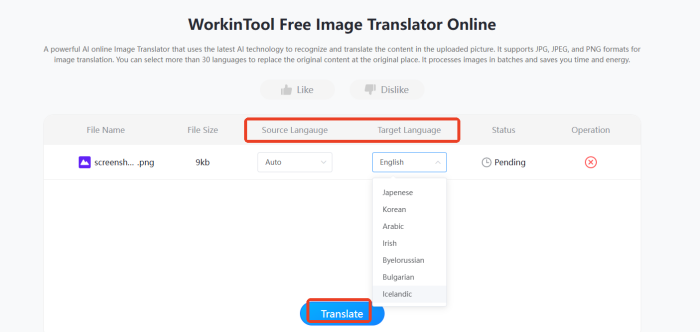
4. Wait for the process to complete. Check the result and download your pictures.

🔔 FAQs About Translating Screenshots on PC
📌 Q1: How does screenshot translation work?
A1: It uses OCR to recognize text in images, then outputs translations via a translation engine. Many tools now integrate both steps—just screenshot and get results instantly.
📌 Q2: How accurate is screenshot translation?
A2: Good enough for daily use, but may struggle with technical terms, slang, or complex contexts. Manual review is recommended for important content—use machine translation as an aid, not a replacement.
📌 Q3: Does image clarity affect translation results?
A3: Yes. Blurry images cause recognition errors, which carry into translations. Zoom in and ensure clarity when taking screenshots—accurate recognition leads to reliable translation.
📌 Q4: Can mixed-language screenshots be translated properly?
A4: Results may suffer. Mixed content causes recognition errors and language detection confusion. Separating languages into different screenshots significantly improves accuracy.
📌 Q5: What if translation results are clearly wrong?
A5: First check for recognition errors—most software allows you to correct the text and re-translate. If the translation itself is off, try a different engine or compare multiple results.
📌 Q6: Can video subtitles be translated?
A6: You can pause and screenshot static frames. For real-time subtitle translation, you’ll need dedicated video subtitle translation tools or software with screen text capture features—regular screenshots can’t do this.
👀 Conclusion
By now, I think you’ve probably got the hang of translating a screenshot on PC. ✨Whether you’re using dedicated software or online tools, the whole process is pretty straightforward. 💡You can pick whichever suits you best based on how often you translate, what languages you need, and your specific situation. Whether you’re going through foreign research papers, handling business contracts, or just browsing international websites, screenshot translation can save you a ton of time.💪 Getting really good at this and using it regularly is a smart move—it means language will never get in the way of your work again.

Related Article
 How to Translate a Screenshot on PC | 3 Ways 2024
  How to Translate a Screenshot | 4 Quick Translation Tips How to Translate Text from A Screenshot | Methods and Practices