


Quick Guide: How Do I Translate a Word Document?
💥Many people struggle with the inefficiency when translating Word documents. What seems like a quick task often drags on for hours, making little progress. 🔎There are slow – loading pages, messy formatting, frequent errors… one problem after another, which waste time and kill motivation. 🤔So how do you solve this? Read on to find out~


Quick Guide: How Do I Translate a Word Document?
Translating Word documents into another language might seem like a niche task, but it’s actually a frequently encountered need. Students need to delve into foreign literature, office workers have to deal with overseas emails, and sales teams are required to prepare multilingual materials… The scenarios are diverse, and so are the methods. So how do I translate a Word document❓ This article holds the answers!

🎈 Preparation Before Translating Word Documents
🔶Document Analysis & Assessment
Browse the source document first to understand its type, length, and subject area. Note any tracked changes, comments, or special formatting that may require separate handling.
🔶Format Backup & Organization
Save a backup copy before starting, adding “original” or a date to the filename for easy identification. For complex layouts, outline the structure and mark heading levels and image positions.
🔶Terminology Compilation
Highlight technical terms, abbreviations, and recurring expressions while reviewing, then compile a terminology glossary. Cross-check with any client or company term bases to ensure consistency.
🔶Reference Collection
Gather dictionaries, bilingual texts, background materials, and similar past translations. Researching unfamiliar content beforehand reduces interruptions during translation.
🔶Schedule Planning
Estimate the time needed for translation, proofreading, and formatting based on document length and difficulty. Break longer documents into sections and build in buffer time for unexpected issues and final checks.
✨ Overview of Common Word Document Translation Methods
| Ways | Use Case | Features | Limitations |
| Human Translation | Formal documents, specialized content | Flexible expression, contextual understanding | Time-consuming, higher cost |
| Machine Translation | Draft generation, content overview | Fast output, always available | Potential semantic errors |
| Human-Machine Collaboration | Bulk documents, lengthy content | Balances efficiency and quality | Still requires human review |
| Assisted Tools | Repetitive content, term-heavy texts | Consistent terminology, reusable | Learning curve required |
🔑 Hands-on Word Document Translation Methods
✅ TranslateAI (PC)
A feature-rich AI-powered translation software with multiple modes including PDF, TXT, Image, Video, and Screenshot translation. It also integrates conversion, compression, OCR, and repair functions to help boost daily productivity.

Step-by-Step Walkthrough:
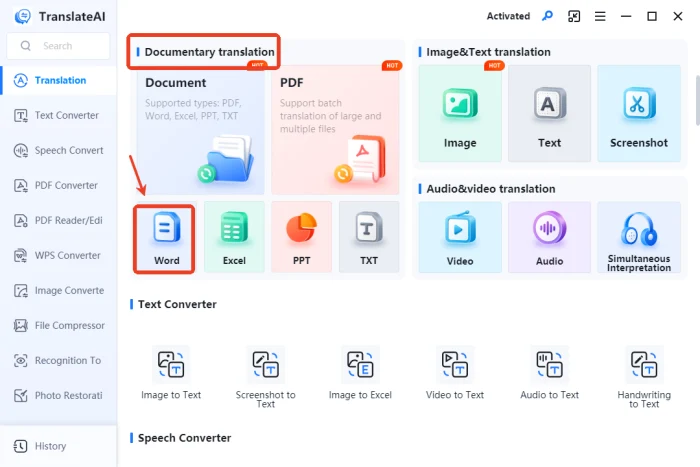
◽1. Open the software and click【Word】under “Documentary translation.”
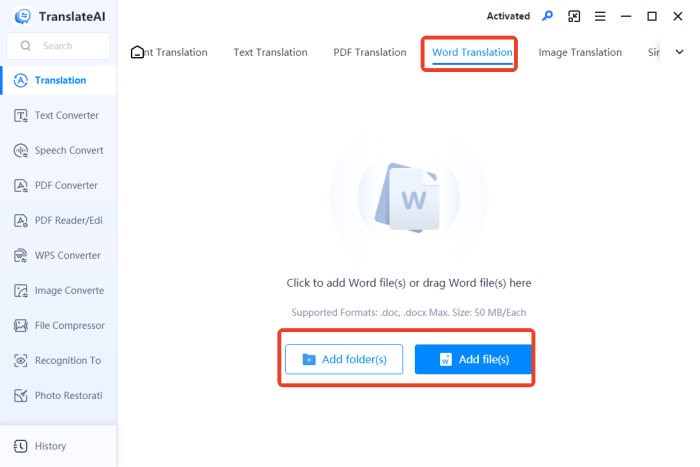
◽2. Add one or multiple files (supports doc/docx, up to 50MB each).
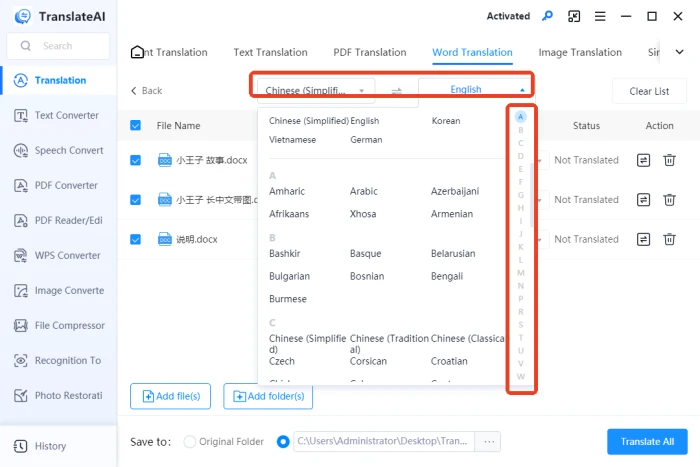
◽3. Set the source and target languages; customize individually if needed.
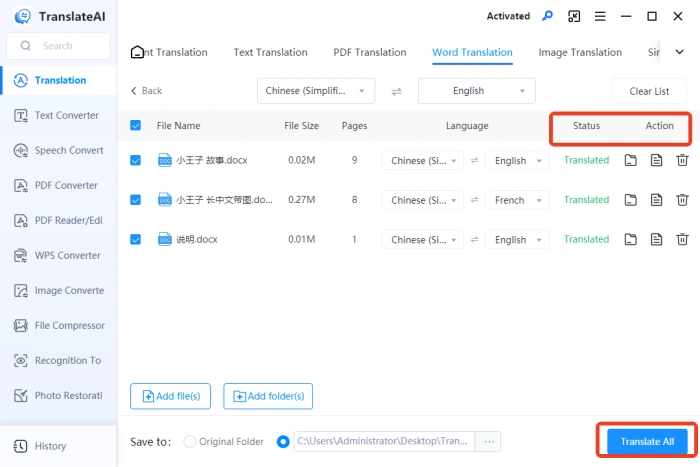
◽4. Click “Translate All” and open the result once it shows “Translated.”
✅ Word Translator(Web)
An online document translation tool by WorkinTool supporting Word, PPT, Excel, TXT, and PDF. Clean interface, intuitive operation—get your desired translation results in just a few steps.
Step-by-Step Walkthrough:
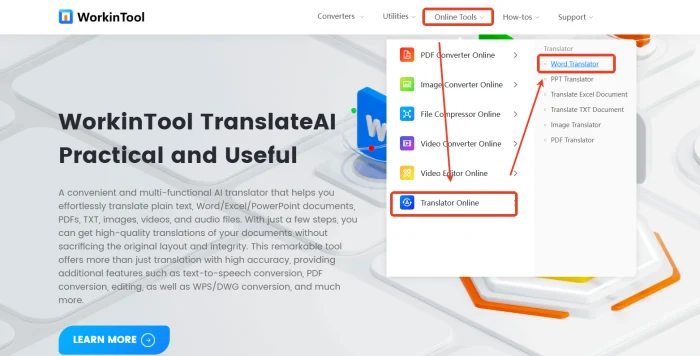
◽1. Find “Online Tools” at the top and select【Word Translator】under “Translator Online.”
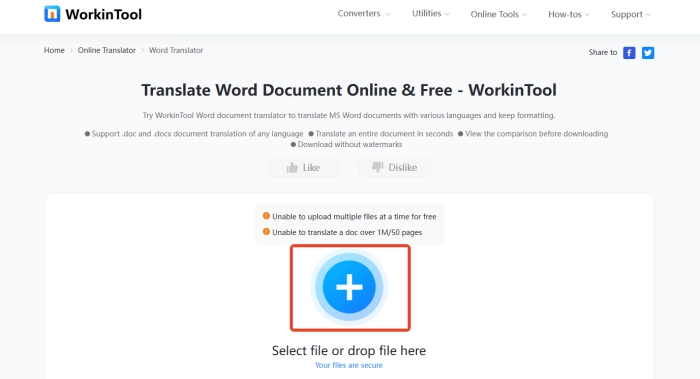
◽2. Click the “+ ” button or drag and drop a DOC/DOCX file here to upload.
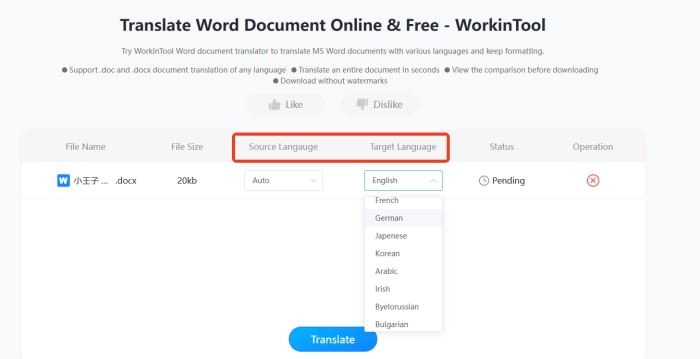
◽3. Configure the original and target languages and click “Translate” to start.
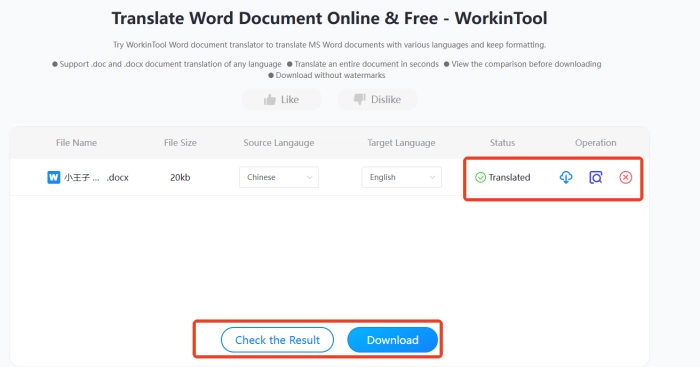
◽4. Preview the translated document and download it for free.
💡 Common Issues & Solutions in Word Translation
🔔Character Encoding Issues
| Problem: Garbled text or abnormal special characters after translation.
Solution: Check the document encoding and ensure proper character set support for the target language. Save in a compatible format and embed fonts if necessary. |
🔔Layout Displacement
| Problem: Translation length differences cause formatting issues or page breaks.
Solution: Adjust font size and paragraph spacing flexibly. For fixed layouts, condense or expand the translation as needed. Adjust column widths or use abbreviations in tables. |
🔔Inconsistent Terminology
| Problem: The same term is translated differently in various places.
Solution: Create a glossary before translating, update it throughout, and use find-and-replace to unify terms. CAT tool term bases help reduce this issue. |
🔔Image Text Processing
| Problem: Embedded images contain text requiring translation.
Solution: If editable source files exist, modify and replace directly. Otherwise, use image editing software or add translated captions below the images. |
🌈 Self-Assessment of Word Translation Quality
◾ Fidelity: Does the translation accurately convey the original meaning without omissions or misinterpretations?
◾ Readability: Can target readers understand it smoothly? Is the language natural and accessible?
◾ Professionalism: Are terms used according to industry standards? Is specialized language consistent throughout?
◾ Correctness: Are grammar, punctuation, and formatting proper? Any obvious errors or oversights?
◾ Appropriateness: Does the tone match the document’s purpose and align with the original style?
👀 Conclusion
Word document translation isn’t just language transformation—it’s a skill that demands continuous learning and practice. 📢Quality lies in the details: accuracy in word choice, punctuation standards, format consistency, and terminology uniformity all warrant careful attention. 👍The two methods introduced here each have their strengths, spanning both desktop and web platforms to allow for flexible selection based on your needs. 🎊We hope this article helps you work smarter, not harder on your translations.

Related Article
 Quick Tips: How to Translate a PDF Document from English to Spanish How to Translate a PPT to English: A Quick Start Guide Quick Start Guide for Beginners: How to Translate PPT to English