


A Hands-On Guide: How to Translate Text on an Image
Ever felt at a loss when staring at an image filled with foreign text❔Whether it’s deciphering charts for academic research, reading road signs while traveling abroad, or reviewing contracts in business settings, 🔎translating text on images quickly and accurately has become an essential skill. 🔑This guide will demystify image text translation and help you break through language barriers with ease!


A Hands-On Guide: How to Translate Text on an Image
Image text translation isn’t just about recognizing characters and swapping words—it’s a comprehensive process combining multiple technologies. The core concept involves extracting text from images into editable form, converting it to the target language through algorithms, and presenting the results to users. This technology plays a vital role in cultural exchange, business communication, and information dissemination. Want to know how to translate text on an image❓ Keep reading!

💥 Image Text Translation: Beginners’ Pitfall Evasion
🔸 Relying too heavily on machine translation, skipping manual review
Many beginners assume tools deliver perfect results without verification. However, machines have limitations in understanding semantics and context, leading to errors.
◾ Tip: Always manually verify key information and professional terminology, regardless of how smart the tool is.
🔸 Ignoring image preprocessing, uploading low-quality images
Some users rush to upload blurry, tilted, or glare-affected images, then blame the tool for poor recognition.
◾ Tip: Optimize images first—sharpen blurry ones, straighten tilted ones, crop cluttered ones to improve accuracy.
🔸 Using translations directly without considering context
Beginners often focus solely on text output, ignoring the image’s context, resulting in mismatched translations.
◾ Tip: Consider the image context when translating. Manually adjust keywords if results don’t fit the actual scenario.
🔸 Indiscriminately choosing feature-rich tools, ignoring actual needs
Beginners tend to think more features mean better tools. In reality, excessive features complicate operations and reduce efficiency.
◾ Tip: Choose based on your needs—use built-in phone tools for quick daily tasks; go for software having comprehensive functions in professional situations.
🔔 Types of Image Text Translation Tools
| 📍 Tool Type | 🌈 Core Features | 📌 Applicable Scenarios |
| ◽ Built – in Phone Tools | Relatively convenient operation, no download or installation required, and simple to use. | Suitable for daily basic translation scenarios, such as foreign language signs and brief instructions. |
| ◽ Professional Translation Apps | Diverse functions, support for multiple language conversions, and certain operational flexibility. | Handling translation tasks with a certain degree of difficulty and requirements, such as business documents and graphic – text mixed materials. |
| ◽ Desktop Software | Optimized for large – screen display, and performs well in image presentation and processing. | Mostly used for academic literature translation, meeting the requirements for concentrated translation of image – text materials over a certain period. |
| ◽ Online Translation Platforms | No installation program required, cross – device usability, and offers certain collaboration convenience. | Responding to temporary translation needs and providing assistance for multi – person collaborative translation and result sharing. |
👍 Reliable Image Text Translation Methods
✅ TranslateAI
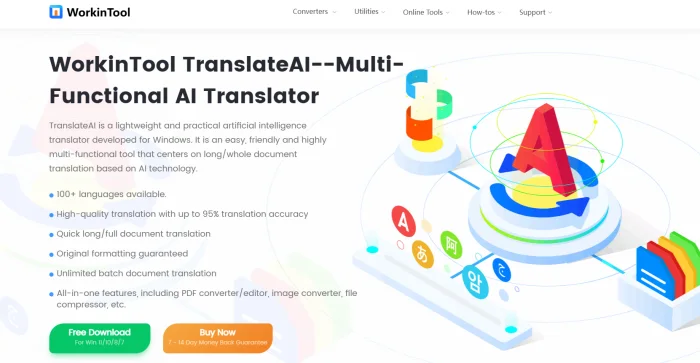
A professional and practical translation software that offers multiple translation modes, such as PDF, image, Word, and TXT. It supports more than 100 languages and integrates conversion, compression, and OCR tools to enhance productivity.
📝Step-by-Step Guide:
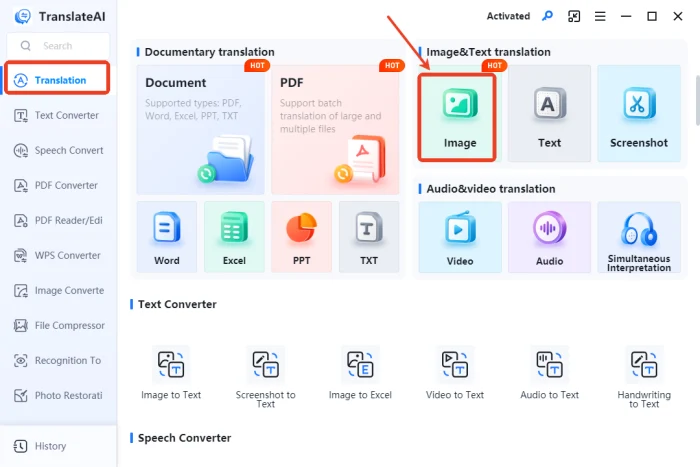
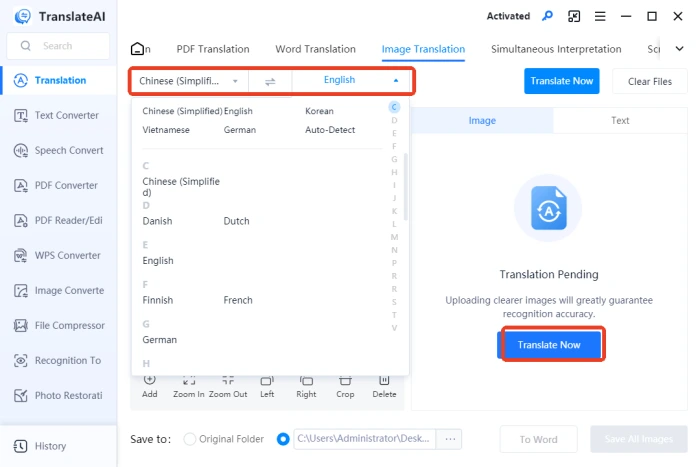
1. Open the translation software and access the “Translation” interface. Choose 【Image】 under “Image & Text Translation”.
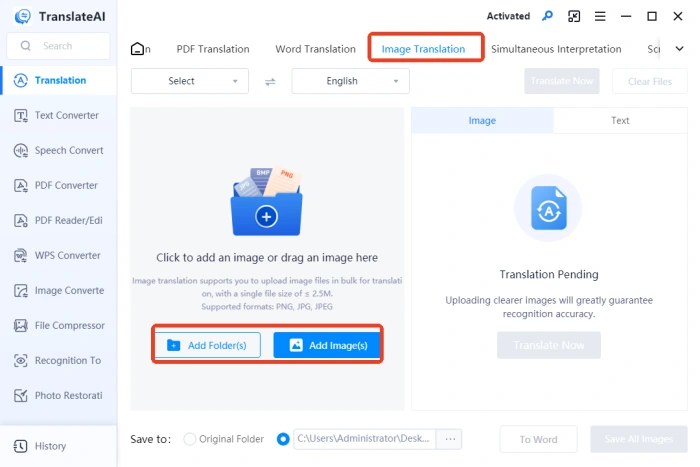
2. Import images as needed. It supports multiple formats, with each file capped at 2.5MB.
3. Support image preprocessing like zooming, rotating, and translating selected content.
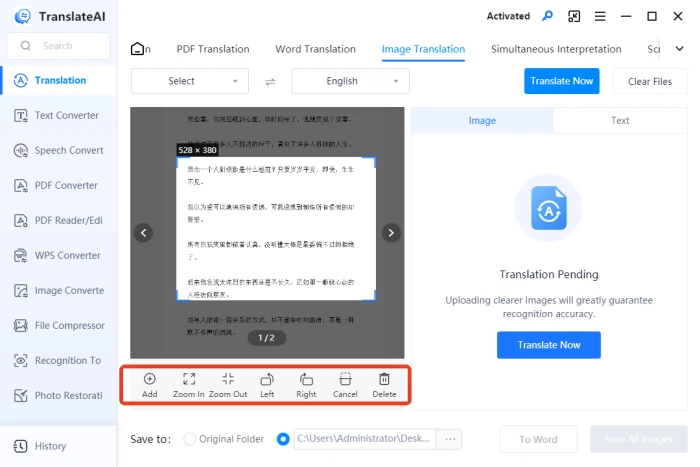
4. Set the source and target languages, and then tap “Translate Now“.
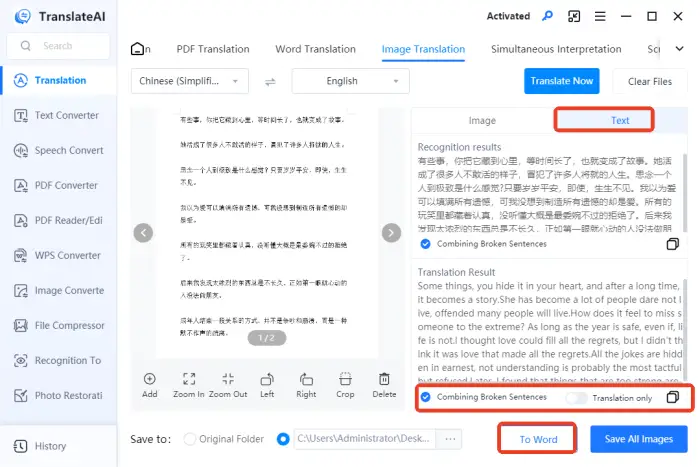
5. Compare original/translated texts on right “Text” panel; supports merge, copy & Word export.
📢 How to Evaluate Image Text Translation Quality
🎈Grammar and Spelling Check
| Carefully examine translations for grammar and spelling mistakes. Although translation tools are equipped with built – in correction functions, errors can still occur. Utilize online grammar checkers for extra verification. |
🎈Semantic Coherence Analysis
| Read the translation thoroughly to evaluate if the meaning progresses logically. Focus on the connections between sentences and paragraphs. Unnatural expressions or ambiguous meaning suggest quality problems. |
🎈Cross – reference with Source Text
| Compare the translation with the original text, concentrating on technical terms, numbers, dates, and other vital information. Check for accuracy, omissions, or mistranslations—this is essential for correct understanding. |
🎈Native Speaker Feedback
| If possible, ask a native speaker to review the translation. Their language sense and cultural background allow them to identify awkward phrases and offer objective comments. |
✨ More to Share
Image text translation is a highly practical digital skill that helps break language barriers and allows us to access diverse information.💡Choosing the right tool matters—TranslateAI, mentioned above, is a good option with its clean interface and reasonably accurate and timely translations.💪It empowers us to handle multilingual content more effectively in study, work, and daily life, ensuring language is no longer an obstacle to understanding the world.

Related Article
 How to Translate a Video: A Comprehensive Guide How to Translate an Excel Document:A Quick Start Guide How to Translate PDF to English | A Detailed Guide to Sharing Translations