


Quick Start Guide for Beginners: How to Translate PPT to English
In cross-cultural communication, PPT serves as both a content carrier and a visual language. Translating a PPT into English involves more than just converting the language; it requires content reorganization. 💪During translation, it is crucial to accurately grasp textual expressions, clearly organize the logical structure, and deeply align with the target culture. 🎊This article will systematically outline the core points of translating PPT to English from multiple dimensions, helping you effortlessly overcome language barriers.


Quick Start Guide for Beginners: How to Translate PPT to English
PPT translation to English is a vital part of cross-language communication, suitable for various scenarios such as academic seminars, business negotiations, international conferences, and project bidding. The key is to accurately convey the original information, conform to English expression habits, and maintain the original design logic of the PPT. Compared to ordinary text translation, it requires consideration of textual accuracy, aesthetic layout, and audience adaptation. Want to know how to translate PPT to English❔ Keep reading!
🔔 Key Points for Translating Various Elements in PPT
◼ Title & Subtitle
| Align with the page’s core theme, use common English expressions, standardize capitalization, keep concise, and highlight the guiding role of the title without unnecessary decorations. |
◼ Body Text
| Ensure semantic accuracy and smooth expression, stay true to the original meaning, integrate scattered expressions, and use concise language that fits English expression habits and PPT presentation scenarios. |
◼ Chart Annotation
| Guarantee accurate data correspondence, make annotations clear and understandable, employ unified and standardized terminology, and avoid obstructing the chart’s core content. |
◼ Notes Content
| Align with the original meaning to accurately convey core information, keep language concise and smooth without redundancy, suit the auxiliary role of notes, and maintain consistency with the body text style. |
◼ Page Comment
| Clearly convey hints, modification suggestions, etc., use straightforward and concise language, and emphasize pertinence and practicality to facilitate editing and comprehension. |
✨ PPT Translation Strategies for Different Scenarios
| Application Scenario | Audience Group | Language Style | Information Density | Focus | Typical Mistakes |
| Formal Reporting | Decision-makers, Management | Formal, Prudent, Written | ★★★★☆ | Standardized terminology, Rigorous logic, Clear conclusions | Weak tone, insufficient impact |
| Academic Presentation | Professionals, Researchers | Professional, Accurate, Rigorous | ★★★★★ | Precise concepts, Clear data, Standardized citations | Overly simplified expressions, Insufficient argumentation |
| Classroom Explanation | Students, Learners | Clear, Understandable, Well-structured | ★★★☆☆ | Sufficient explanations, Clear structure, Easy comprehension | Excessive terminology, Hindered understanding |
| Project Communication | Team Members, Partners | Direct, Clear, Practical | ★★★☆☆ | Highlighted key points, Avoid ambiguity, Facilitate execution | Vague expressions, Unclear direction |
| Training Guidance | Newcomers, Non-professionals | Concise, Friendly, Easy to remember | ★★☆☆☆ | Clear steps, Defined key points, Easy operation | Information overload, Unclear hierarchy |
📢 Useful Tools for Translating PPT to English
✅ TranslateAI
A professional and intelligent desktop translation software that supports multiple translation modes such as PDF, audio, and images. It is suitable for learning, office, travel, and other scenarios, helping you overcome language barriers and enjoy a more natural and smooth translation experience.
💡Operation Steps:
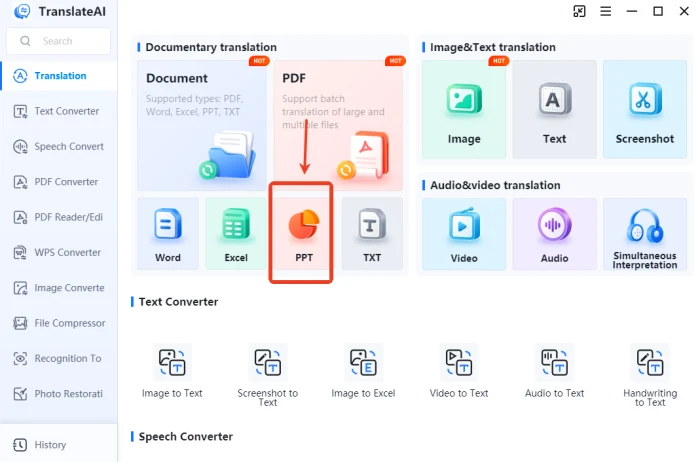
1.Visit the official website, download, and install the software on your computer. Launch it and select [PPT] on the page.
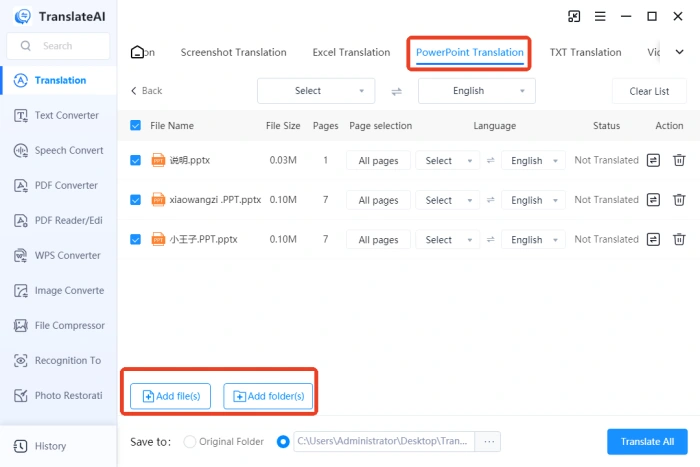
2.On the [PowerPoint Translation] interface that appears, add single or multiple files (Max. Size: 50 MB/Each).
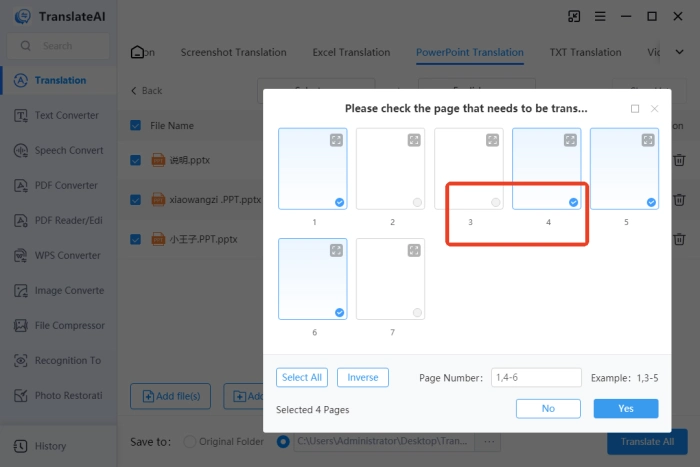
3.Select the pages to be translated (the system defaults to translating all pages of each file).
4.Set the source language according to the PPT document content and select “English” as the target language.
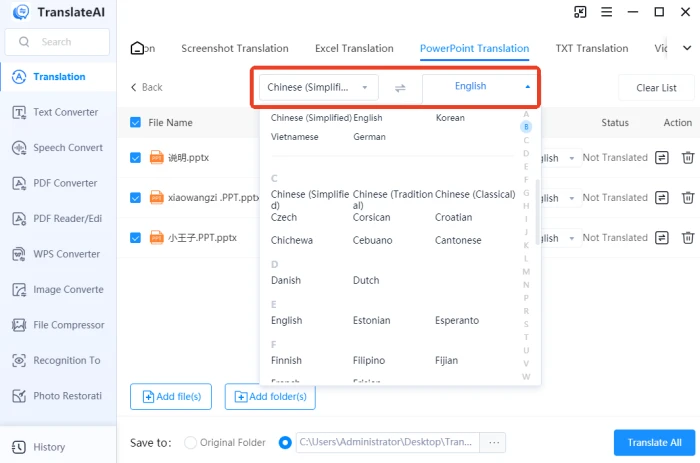
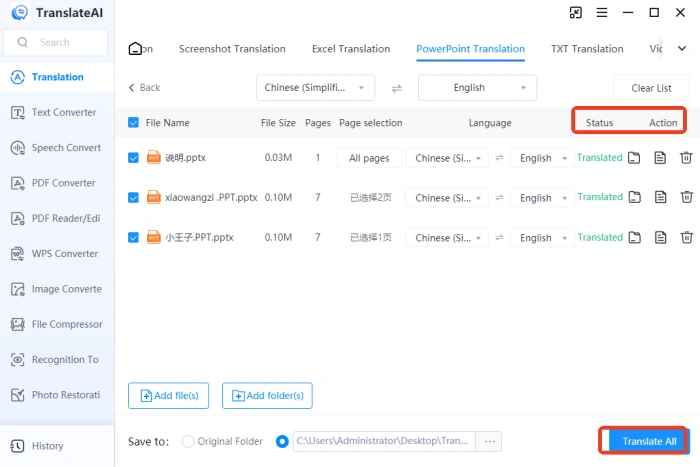
5.Click “Translate All” at the bottom of the interface. Wait a moment to complete the translation and view the results.
✅ PPT Translator
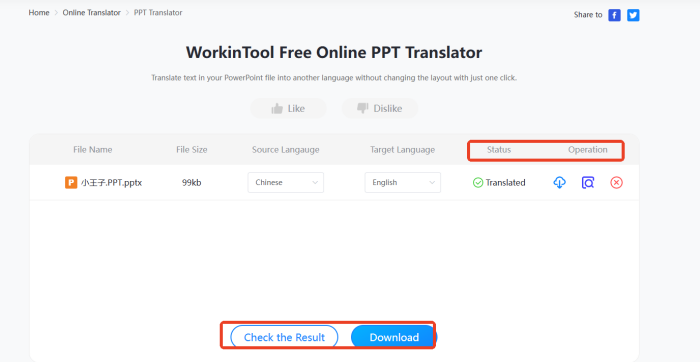
An online PPT translation platform launched by WorkinTool, requiring no registration or login. It is equipped with an AI translation engine that can intelligently judge the context and provide accurate translation results, supporting the preview of the original text and translation side by side.
💡Operation Steps:
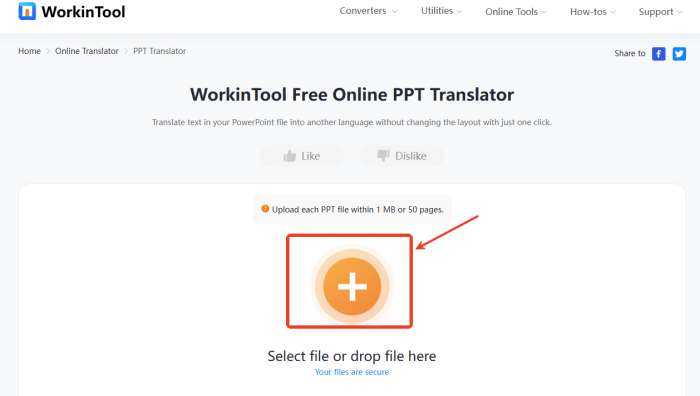
1.Search for and open the website, then click the “+” on the page to import a single PPT file to be translated.
2.Select the source language and set the target language to English, then click the “Translate” button.
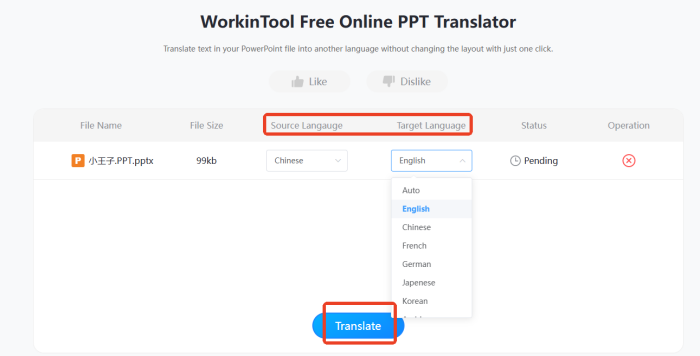
3.After automatic processing is complete, download the translated file and directly view the bilingual comparison effect.
👀 Common Problems and Solutions in PPT Translation
Q1: How to ensure translation norms when encountering special symbols (such as formulas, symbols) during PPT translation?
A1: There is no need to deliberately translate them; retain the original standardized format. If supplementary explanations are required, use common English expressions to ensure coordination with the overall translation.
Q2: How to ensure accuracy when standard translations for professional terms cannot be found?
A2: Consult industry authoritative materials or professional dictionaries to determine common translations. When multiple translations exist, choose based on the scenario and maintain consistency throughout the text.
Q3: How to optimize when a large amount of “Chinglish” appears after translation?
A3: Read the translation sentence by sentence, modify sentence structures that do not conform to English habits, and delete redundancies. You can also refer to similar English PPTs to adjust expressions.
Q4: What should be done if animation effects are lost after translation?
A4: Always back up the PPT before translation and avoid modifying animation settings during translation. If lost, support for re-adding is available; refer to the original text to adjust parameters.
Q5: What should be done if the text is too long after translation, causing chaotic layout of the slides?
A5: Delete redundant vocabulary, compress sentence structures, and split long sentences. If it still does not fit, appropriately adjust the font size and line spacing to ensure the text is complete and aesthetically pleasing.
🌈Conclusion
Translating PPT to English is not a simple language conversion but an information reconstruction across contexts. It not only requires accurately conveying the core meaning of the original text but also flexibly adjusting wording, tone, and expression logic according to the specific usage scenario, while also considering layout, rhythm, and visual presentation. Only after such treatment can the English version of the PPT demonstrate professionalism and be more persuasive in scenarios such as reporting presentations, business communications, and international exchanges.

Related Article
 How to Translate an Excel Document:A Quick Start Guide How to Translate English to Spanish | 4 Quick Translation Tips
  Quick Tips: How to Translate a PDF Document from English to Spanish